Contents11
- Check your details before you start
- How to verify a Google Business Profile from start to finish
- The verification methods Google offers
- Video recording
- Live video call
- Codes sent by phone, text or email
- Postcard
- Instant and bulk verification
- What to film in a verification video
- Why verification fails, and how to fix it
- After you verify, put the profile to work
Verification is how Google checks that your business exists where you say it does and that you're the one running it. Until it's done, your profile won't appear in Maps or local results, and most edits stay hidden. Starting takes a few minutes, but how fast it ends depends on how closely your details match what Google sees for itself.
This guide walks through each method Google offers, from video to postcard. You'll also see what a verification video needs to show and how to fix a profile that keeps getting rejected.
Check your details before you start
Many rejected attempts trace back to details entered before verification even began, so get these right first.
Name: use the name on your door and your website, with no area names or service keywords added to it.
Address: give the building name and floor a visitor would look for, then move the map pin onto your entrance.
Category: pick the primary category for what you are, such as "Dental clinic", rather than every service you sell.
Phone and website: list a number that rings at the business and a site showing the same name and address.
Account: create the profile from a company Google account you'll keep, not a staff member's personal login.
A note for Dubai businesses: Google doesn't accept a PO Box as a business address. A flexi desk or virtual office qualifies only when it's staffed during the hours you list. If customers never visit you, set the profile up as a service-area business and hide the address.
How to verify a Google Business Profile from start to finish
Sign in to the Google account that will own the profile, then search Google for your business name.
If the business isn't listed yet, add it in Google Business Profile Manager using the details you checked above.
Select "Get verified" on the profile, and Google shows the verification methods open to your business.
Pick a method and follow the prompts until you've entered the code or uploaded the video Google asks for.
Hold off on editing the profile's core details until it shows as verified, because changes can trigger another check.
You don't choose the method yourself, since Google decides from your category, your location and the profile's history. It sometimes offers only one, so be ready for video even if you hoped for a phone code.
The verification methods Google offers
Video recording
Video is the method many new profiles are offered now: you record one continuous clip on your phone and upload it from the profile. Google reviews it, usually within a few business days, and the section below covers what to film.
Live video call
Some businesses get a live call with a Google support agent instead. You show the same things as in a recorded video while the agent tells you where to point the camera. Book it for a time when you're at the premises with the keys.
Codes sent by phone, text or email
Google sends a code to the phone number or email address on the profile, and you type it in to finish. Have the phone or the inbox with you before you ask for the code.
Postcard
If Google offers a postcard, it posts a code to the address on your profile. While you wait, don't edit the address or request a second card, because a new request cancels the first code.
Instant and bulk verification
Google sometimes verifies a profile instantly, for example when the same account already owns the business website in Search Console. Brands with many branches under one name have a bulk verification option, so each location doesn't need its own check.
What to film in a verification video
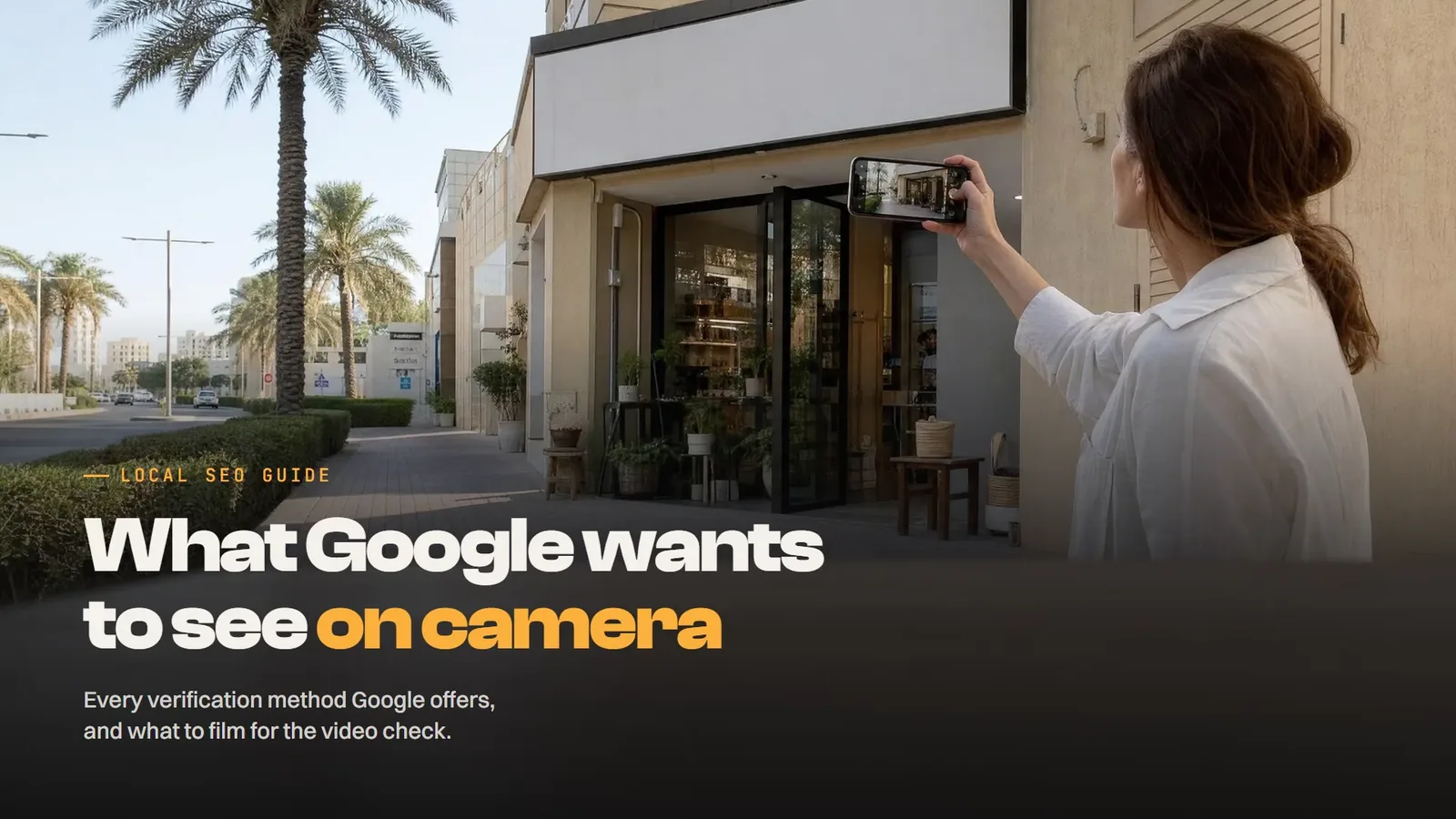
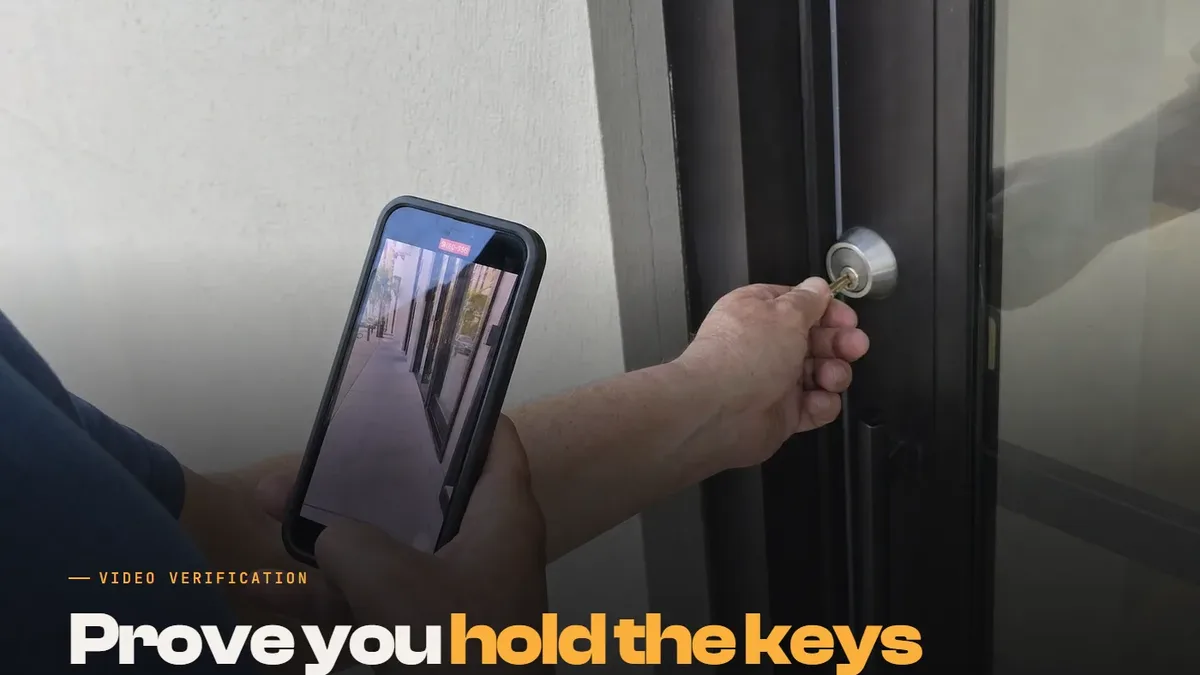
Google wants one unedited clip proving that the business operates at this address and that you manage it. Plan your route through the premises before you press record, since the clip has to run without a break.
Outside: film a street sign or a neighbouring business, then walk to your entrance with your own sign in shot.
Inside: show your equipment, stock or work area, along with anything printed with your business name.
Access: prove you run the place by opening the front door with your key or logging in at the till.
Keep it as one take with no cuts, and film in daylight so signs are easy to read. With no shopfront to show, a service-area business films its work vehicle, its tools and a document carrying its name.
Why verification fails, and how to fix it
When Google rejects a video or suspends a new profile, the cause is usually a gap between your details and what it can see.
The name carries extra keywords: change it to the name on your sign and record again.
The address is a flexi desk, shared office or home with no signage. Switch to a service-area profile with the address hidden.
The video had cuts or skipped the street outside: film it again in one take, starting on the pavement.
The category doesn't match the premises. A clinic category on a profile filmed in an empty office won't pass.
Someone else verified it first, such as a former agency or employee: request ownership from the profile, and Google contacts the current owner.
A suspended profile needs more than edits, so correct the details first and then file an appeal through Google's Business Profile appeals tool. Attach photos or documents that show the business operating at that address.
After you verify, put the profile to work
Verification puts you on the map, and what you add next shapes how often you show up. Fill in your hours, photos and services, then reply to reviews so people see someone is looking after the business. Google Business Profile used to be called Google My Business. These signals matter for nearby searches, and we explain why in our post on local SEO and Google My Business.
Add a tagged link in the website field so visits from your profile show up as their own source in analytics. If your analytics can't separate those visits from the rest of your traffic yet, start with our GA4 setup service in Dubai.
Linking a verified profile to Google Ads lets location assets add your address and a directions link to your ads. If you'd rather hand campaigns to a team, connecting the profile is part of the work at our PPC agency in Dubai. Retailers whose ads should show stock available in their shop also need the profile connected to the feed behind their Google Shopping ads.
Once the profile sends traffic, you'll want to see it next to everything else you spend on. The Adnika Dashboard: one live view of a client's ads, analytics and CRM data, with AI recommendations reviewed by the strategist. For a local business, that puts the website visits your profile sends beside your ad results and the leads in your CRM.
Last, give your agency manager access from the profile's settings instead of sharing your Google password. You stay the owner and remove that access whenever you like.