Contents11
- Turn meeting notes into annotations on the Figma canvas
- Sort comments into next steps with a skill
- Build a custom shader for a distinct look
- Compare layout variations in one prompt
- Test interactions with a code layer
- Add motion without animating each version by hand
- Access to the Figma agent by plan and seat
- The Figma agent and design teams in Dubai
- Get your design system ready before you lean on the agent
- Next steps for a Dubai business this week
- Keeping people in charge of AI suggestions
There's now an agent that works inside your file, directly on the Figma canvas. Figma has published six practical ways to use it, from organising feedback to adding motion. The Figma agent sits next to you on the design, keeping you in charge of what it changes.
That's a bigger shift than it sounds. If your team sends screenshots of the canvas to AI agents such as Claude, that round trip goes away. You prompt the agent directly in Figma, and its output lands on the frames you're working on. Bring it into any stage of your Figma work, from first ideas to the details you refine before handoff.
Below, we explain each of the six ways in plain terms, in the order Figma gives them. Then we cover who has access, what it means for teams in the UAE and what a Dubai business should do this week.
Turn meeting notes into annotations on the Figma canvas
Design crits produce a lot of feedback, and it's hard to sort while people are still talking. The agent pulls in meeting notes or a transcript through a connector, from tools like Granola, Notion or Google Drive. Ask it to place each piece of feedback beside the design it's about, so the context stays with the work. That leaves you free to follow the conversation in the meeting itself.
To try it, open Connectors from the plus button in the agent's chat box and connect the app that holds your notes. Then share the transcript and ask the agent to annotate the design using the crit feedback.
Clear frame names help here, since you'll want to check that each note landed beside the right design. Pin the transcript link beside the frames as a reference for anyone who missed the crit.
Sort comments into next steps with a skill
Comment threads in busy Figma files get long fast, and the agent turns them into a short summary with suggested updates. Select the frames with comments and ask it to summarise the feedback and propose changes. You review the suggestions first, then have the agent apply the ones you agree with.
Skills make this kind of sorting repeatable across a whole team. A skill is a reusable set of instructions for the agent, which you call up with a slash command. It works more like a saved prompt than a plugin.
One skill Figma points to, /comments-do-try-consider, sorts comments into things to do, try and consider. You then ask the agent to put that summary in a new frame next to the design. For a skill from Figma Community, click Save on its page, then type a slash in the chat box to pick it. Your designers can also write their own skills to capture a workflow they repeat, such as a weekly review.
Build a custom shader for a distinct look
A shader is an effect or fill backed by code, and Figma's examples include liquid metal, grain, glass distortion and holographic textures. With the agent, you describe the effect you want in plain words, then refine it by asking for changes.
Figma's demo gives a photo a grainy, vintage look, with grain, faded colours and a soft vignette. If shaders are new to you, the /shader-starter skill helps you get going. Once you like the effect, you'll find it under Tools, ready to apply to another image.
To carry the look across more images, connect Google Drive through Connectors. Then ask the agent to apply the same shader to the photos in a folder. That's handy for a campaign where every image needs the same treatment.
Shaders and motion are the creative end of this update, and they help a brand's visuals stand apart. Use them with care on property or product photos, where buyers expect to see the real thing.
Compare layout variations in one prompt
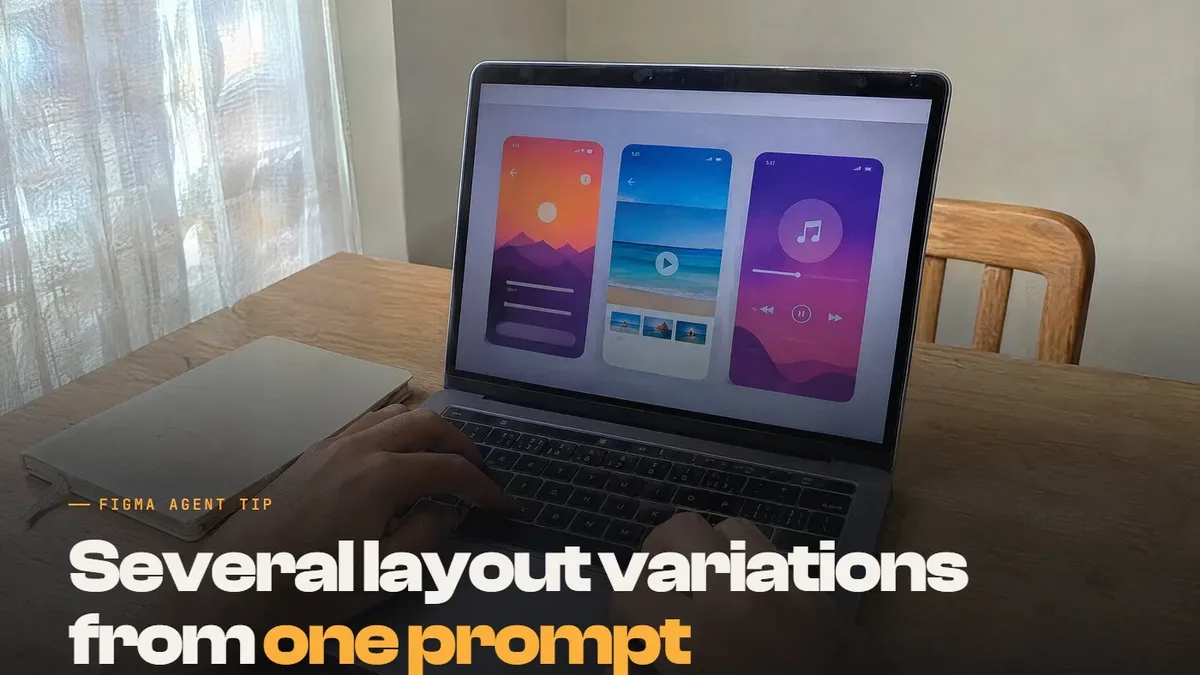
Exploring several directions on the Figma canvas used to take a lot of upfront time. Now the agent can create several variations of a screen or feature from one prompt. You then weigh small details or compare whole directions side by side.
Take Figma's weekly insights screen: you ask for three layouts that try a bigger or smaller main image and move the heading. Seen together, the layouts make the hierarchy easier to judge, including how much space the image should take.
Start by opening Libraries in the agent's menu and selecting your team's library. With it selected, the agent can use your existing components, styles and variables. Tell it exactly what to keep as it is, from the content to the visual style.
The variations are built from your own components, so your designers can keep refining them. Keep the original frame beside them while you compare, so everyone can see what changed.
If your starting point is a live website, Figma's Chrome extension brings the latest version onto the canvas in one click. From there, the agent helps you rework the layout or content.
Test interactions with a code layer
Some decisions are hard to judge until they exist in code, such as how a swipe should feel. The agent can rebuild your design as a code layer, an interactive prototype backed by code that sits on the Figma canvas. In Figma's example, a stack of product cards becomes something you drag aside to reveal the next card.
To try it, select the frame and choose Build this with code. Then describe the interaction, such as dragging the top card aside to show the next one with an animated transition. You refine the feel from there, on the canvas, before anyone builds it for real.
Treat a code layer as what Figma calls it, an interactive prototype. Your developers still build the live version in production code, starting from an interaction your team has already tried. If movement like this matters to your site, settle it early, as a core step in interactive website design.
Add motion without animating each version by hand
The agent also animates a static design, whether you already know the movement you want or need options to compare. Figma uses a hand icon that shows people where to tap on a screen. One version presses down slowly, and another spins playfully before it clicks.
Both come from a single prompt, so there's no manual work of animating each one yourself. To compare them, switch the toolbar toggle to Motion, select each frame and press play.
Motion like this suits onboarding hints, where movement shows people what to do next. Which version fits your brand remains a call for your team to make.
Access to the Figma agent by plan and seat
The agent is listed on every Figma plan, from Starter to Enterprise. Higher education plans have it too, which matters for UAE universities. People on Collab, Dev and View seats can use the agent in their drafts.
Pricing and regions aren't covered in the post, which doesn't mention the UAE. So before you plan work around the agent, try it in a draft and confirm what your account allows.
The Figma agent and design teams in Dubai
The change reaches anyone in the UAE whose website or app is designed in Figma. That includes in-house designers at Dubai companies, start-up product teams and the agencies they hire. Owners and marketing managers who review designs are affected too, since a View seat can try the agent in drafts.
For agencies using it, the effort has shifted from producing options to judging them against the client's design system. For a busy team, the feedback tools are the more interesting part of the update. If you operate with a small in-house team, start with comment summaries, which only need the comments in your files.
Many Dubai sites run in Arabic and English, and Figma's post says nothing about right-to-left layouts. Test the agent on an Arabic frame before you trust it with both languages. A mirrored screen is only the start of a good right-to-left layout, and the rest is the detail work of Arabic website design.
Get your design system ready before you lean on the agent
A design system is the shared set of components and rules every screen is built from. With your library selected, the agent can build from your own components and variables. That means the state of your design system shapes what you get back. General AI models have never seen your product, and their output often looks like a wireframe assembled by someone outside the company.
The buttons are close but not yours, and the spacing feels arbitrary. Your library is the difference between AI-generated screens and work that belongs to a system. A screen built from it uses your real components, your fonts and your spacing scale.
Before you hand the agent real work, tidy these parts of your files:
Build repeated UI elements as Figma components, so variations can reuse them instead of drawing new ones.
Set up variables for colour, font sizes and spacing, which act as design tokens and match what developers use in code.
Use clear naming conventions for layers and pages, so you can refer to them by name when you ask for changes.
Apply variables everywhere, and check that components don't hard-code a colour or size.
Keep the file structure simple, with one page per flow and old work moved out.
Whether you're adjusting an existing layout or exploring a new screen, the agent then has your real parts to work with. If your library isn't set up yet, start there before testing anything else.
Next steps for a Dubai business this week
Check your plan and seat type, then open the agent in a draft to confirm you have access.
Hand the agent one tedious job first, such as sorting comments on a live redesign.
Save one skill for a task your designers repeat every week, so the output keeps the same structure.
Tidy your components and design system using the list above before you ask for layout variations.
Name one person who reviews the agent's work against your design system before anything reaches your developers.
Once you've opened a code layer or motion test, share it with the people who'll sign off the design.
If you're planning a new website with a design system built in from the start, talk to our web design company in Dubai.
Keeping people in charge of AI suggestions
The agent is built to help on the canvas while you stay in control of the design. We apply the same rule to AI in our own work: it suggests, then a person decides.
The Adnika Dashboard: one live view of a client's ads, analytics and CRM data, with AI recommendations reviewed by the strategist. A web design client sees the new site's traffic and enquiries in that one view. The next round of design changes can then start from how visitors behave, with a strategist checking every AI suggestion.
Test the Figma agent this week on one dull job, and keep the decisions with your designers.